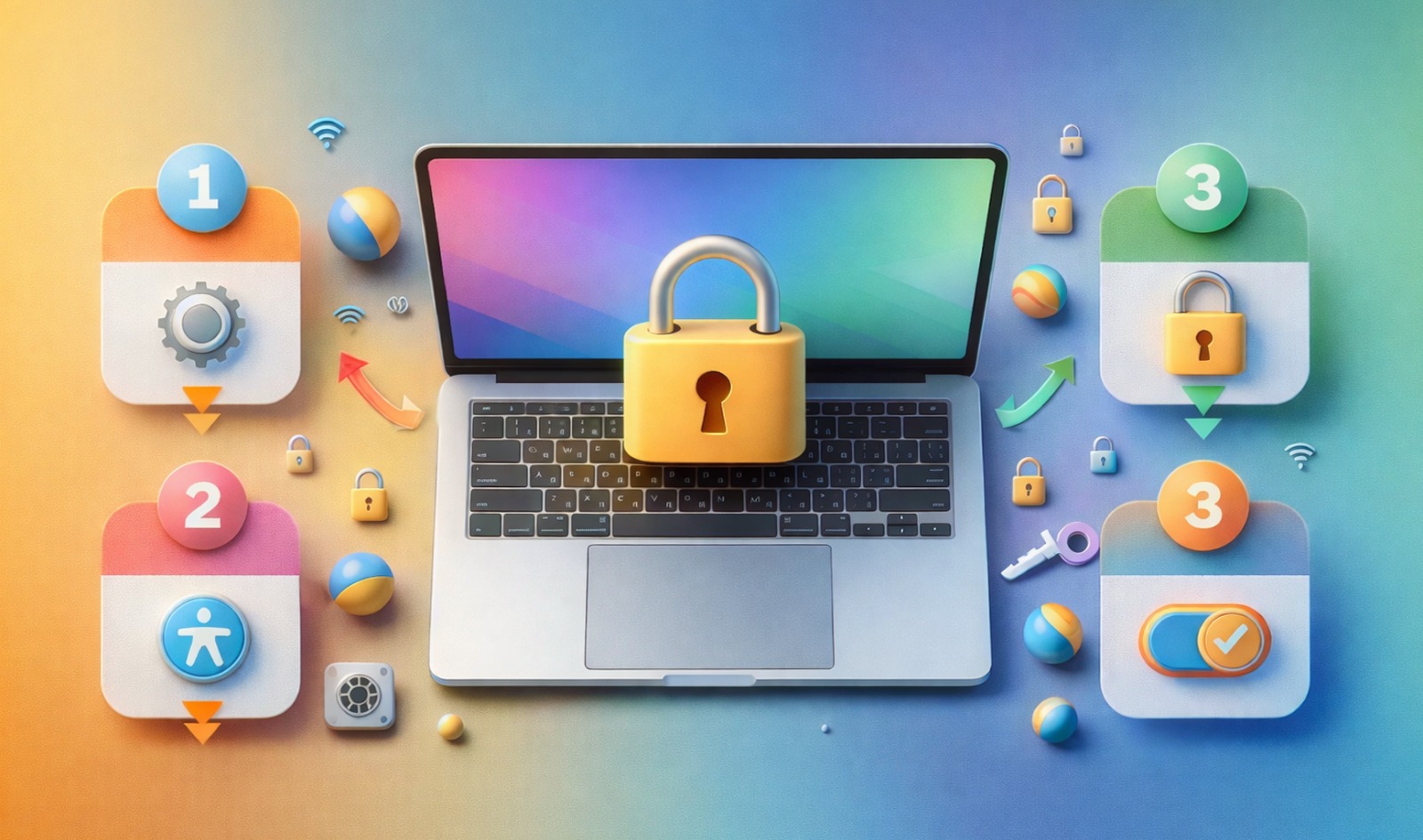
Knowing How to Lock Keyboard on MacBook can be useful in many situations — whether you are cleaning your MacBook, handing it to someone else, or just want to prevent accidental typing. Unlike some Windows laptops, MacBooks don’t have a dedicated key to instantly lock the keyboard, but there are reliable methods you can use that are quick, easy, and built right into macOS. Let’s walk through these step by step.
Why You Might Want to Lock Your MacBook Keyboard
Sometimes you type accidentally when your MacBook is open, or you may need to keep curious hands from pressing keys. Locking the keyboard prevents unwanted input, so you don’t trigger accidental shortcuts, erase items, or type random characters. People commonly look up How to Lock Keyboard on MacBook when they are cleaning the screen, cooking near their laptop, or letting kids watch videos without interference.
Method 1: Use Screen Saver with Password
One way to lock the keyboard and prevent typing is by enabling a password-protected screen saver.
- Open System Settings on your MacBook.
- Click Lock Screen in the sidebar.
- Find the option Require password after screen saver begins.
- Set it to immediately.
- Choose a screen saver from Desktop & Screen Saver.
- Start the screen saver manually using the hot corner or wait for it to activate.
Once the screen saver starts, the keyboard stops working until you enter your password — effectively locking it. This is one of the simplest ways to manage unattended MacBooks.
Method 2: Lock Screen with Keyboard Shortcut
A faster method to lock your MacBook screen (and keyboard) is with a built-in shortcut.
- Press Control + Command + Q.
- Your screen will lock instantly.
- The display will show the login screen.
- The keyboard cannot be used until you unlock with your password or Touch ID.
This method is handy because it takes only two key combinations. When you’re learning How to Lock Keyboard on MacBook, this shortcut is one of the best quick options.
Method 3: Set Hot Corners to Activate Lock
Hot Corners let you trigger actions when the pointer moves to a corner of the screen.
- Open System Settings.
- Go to Desktop & Screen Saver.
- Click Hot Corners at the bottom.
- Choose a corner and set it to Start Screen Saver.
- That screen saver is set to require a password (see Method 1).
Now, when you move your cursor to that corner, the screen saver starts immediately, and the keyboard locks until the password is entered.
Method 4: Use Fast User Switching
Fast User Switching lets you jump to the login screen while keeping your apps open.
- Open System Settings → Control Center.
- Enable Show fast user switching menu.
- Click your user name in the menu bar.
- Choose Login Window.
This takes you to the main login screen, where the keyboard isn’t active for your session until you log back in. It’s not a direct keyboard lock, but it prevents anyone from typing in your account.
Method 5: Use a Third-Party App
If you want a dedicated keyboard-lock feature, some apps provide exact functionality.
- Search “keyboard lock” on the Mac App Store.
- Install a trusted app with good ratings.
- Follow the app’s instructions to lock and unlock the keyboard.
Apps may let you choose shortcuts, timers, or special modes that go beyond built-in options. But remember to pick apps from reputable developers only.
What Happens When the Keyboard Is Locked
When your keyboard is locked on a MacBook:
- Typing won’t appear on screen.
- Shortcuts won’t work.
- Only the login screen accepts input.
- External keyboards also won’t type unless unlocked.
The goal here is safety and control — preventing accidental input or unintended actions.
Tips Before Locking Your Keyboard
Before you lock your MacBook keyboard, keep these simple tips in mind to make sure everything works properly and you can unlock your device quickly when needed.
1) Save your work first
Before locking your keyboard, save any open documents or browser forms. If your Mac restarts or an app crashes while locked, unsaved work may be lost. Saving takes a few seconds and prevents frustration later.
2) Use the fastest lock shortcut
If you need instant locking, use Control + Command + Q. It locks the screen right away and blocks keyboard input until you unlock. This is the quickest option when you step away for even a minute.
3) Set password requirement to “Immediately”
Go to System Settings and make sure your Mac asks for a password immediately after the screen saver starts. If the delay is set to 5 minutes, someone can still type or access your session during that time.
4) Choose a Hot Corner for quick access
Hot Corners can start the screen saver instantly without pressing keys. This is useful when you want to lock the keyboard while cleaning the MacBook. Pick a corner you won’t trigger by accident during normal work.
5) Keep your login password ready
After locking, you’ll need your password or Touch ID to unlock. If you recently changed your password, make sure you remember the updated one. This prevents getting stuck at the login screen.
6) Close sensitive tabs before locking in public
Locking blocks typing, but your screen may still show content for a moment before it locks. If you are in a public place, close personal emails, banking tabs, or private messages before locking for better privacy.
7) Disconnect external keyboards if needed
If you use an external keyboard, locking the Mac will block it too. But for cleaning, it’s better to unplug external keyboards first so you don’t accidentally trigger keys or shortcuts while wiping them.
8) Avoid active downloads that may stop sleep
Some downloads or background tasks can prevent screen saver or sleep mode. If your screen saver doesn’t start, check if a large file transfer, video playback, or app process is keeping the Mac awake.
9) Don’t rely on brightness dimming as a lock
A dim screen does not mean your keyboard is locked. Your Mac may still accept typing and shortcuts. Always use a real lock method like the lock shortcut or a password-protected screen saver.
10) Test your method once before you need it
Try your locking method once so you know it works properly. This helps you confirm your password setting, screen saver behavior, and unlock steps, especially if you plan to use it during cleaning or travel.
How to Unlock Your Keyboard
Unlocking is simple:
- Wake your MacBook if the screen is dark.
- Enter your password.
- Or use Touch ID if your MacBook supports it.
- The keyboard works immediately after login.
If you used a third-party app, follow its specific unlock instructions.
Final Thoughts
Learning How to Lock Keyboard on MacBook gives you better control and protects your session from accidental input. Whether you use a screen saver with a password, a quick keyboard shortcut, hot corners, or even a third-party tool, you now have several ways to keep your keyboard locked whenever you need it. Locking your keyboard is a simple habit that creates peace of mind when stepping away, cleaning, or handing your Mac to someone else.
FAQs: How to Lock the Keyboard on a MacBook
Que: Can I lock only the keyboard on a MacBook without locking the screen?
Ans: No. macOS does not offer a built-in option to lock only the keyboard. Most methods lock the screen or activate a password-protected screen saver.
Que: What is the fastest shortcut to lock my MacBook keyboard?
Ans: Press Control + Command + Q. It locks the screen instantly and prevents keyboard use until you unlock with your password or Touch ID.
Que: Does locking the screen stop accidental typing?
Ans: Yes. Once the screen is locked, the keyboard won’t work in your session. This prevents unwanted typing, shortcuts, or accidental changes.
Que: How can I lock the keyboard while cleaning my MacBook?
Ans: Start a password-protected screen saver using Hot Corners or a shortcut. This blocks typing while you clean the keyboard or trackpad.
Que: Can I lock my MacBook keyboard if I don’t have Touch ID?
Ans: Yes. You can still lock the screen using Control + Command + Q and unlock it with your MacBook login password.
Que: Do Hot Corners help in locking the keyboard?
Ans: Yes. You can set a Hot Corner to start the screen saver. If a password is required, your keyboard stays locked until you log back in.
Que: Will an external keyboard also lock when I lock my MacBook?
Ans: Yes. When your MacBook is locked, external keyboards won’t type into your session until you unlock the login screen.
Que: Is using a third-party keyboard lock app safe?
Ans: It can be, but only if you choose a trusted app with strong reviews. Avoid unknown tools, since they may ask for permissions that affect security.
Que: Why doesn’t my screen saver lock the keyboard immediately?
Ans: Check your settings and make sure “Require password after screen saver begins” is set to Immediately in System Settings.
Que: How do I unlock the keyboard after locking it?
Ans: Wake the MacBook and enter your password, or use Touch ID. Once you’re logged in, the keyboard works normally again.
Leave a Comment